Chrome extension · Telegram to NotebookLM
Turn a Telegram chat or channel export into NotebookLM (Gemini Notebook) sources
Telegram gives you the history as one JSON file or a stack of HTML pages. NotebookLM takes neither. source-lm reads the export in the popup, packs the messages into Markdown files that fit under the per-source word cap, and pushes them into the notebook you have open.
The export file stays in the browser: it is parsed in the popup and sent to the notebook's own origin, never to a converter site or a server of ours. Nothing is written to your disk.
Demo · 0:42
One export, two sources, one question.
A Telegram channel exported as JSON goes into the popup and comes out as two Markdown sources in the notebook, then a question over them. Waits trimmed, nothing else.
 Play the demo0:42
The export is Telegram's half.
Two clients write one, and they hand you different formats. The extension reads both, so take whichever your client gives you.
A channel exports from the same menu as a chat — the channel walkthrough follows one all the way into a notebook.
Telegram Desktop
JSON or HTML
Windows, macOS and Linux, from desktop.telegram.org. Export Chat History has been in it since 2018 and is the only client that offers the machine-readable JSON.
Telegram for macOS
HTML only
The native Swift client from macos.telegram.org, not Desktop. Export Chat History… arrived in version 12.10 on 24 August 2026 and writes HTML pages, with no JSON option. The Mac App Store build was still 12.9, without the menu item, at the end of August 2026.
Telegram Web, iOS, Android
no export
Nothing to export from. Sign in to one of the two desktop clients above on the same account; the history is the same history.
One catch
Telegram makes a freshly signed-in desktop client wait 24 hours before it will export, unless you confirm the request from another device you are already signed in on. That is Telegram's rule, stated in its export FAQ, and nothing on this side changes it.
From the export folder to the notebook
01
Export the history
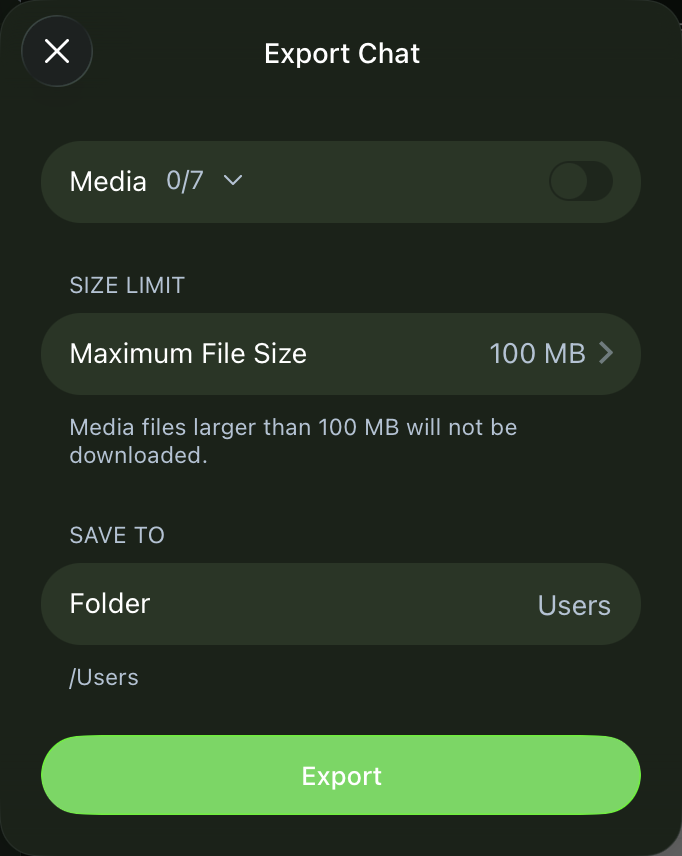
In the chat: the ⋮ menu in Telegram Desktop, the ⋯ menu on the Mac app, then Export chat history. Turn media off — the checkboxes in Desktop, the Media toggle on the Mac — because the extension reads text only, and in Desktop pick Machine-readable JSON. Telegram writes result.json, or messages.html and, for a long chat, messages2.html, messages3.html and so on. The export dialog, click by click.
02
Pick the file — or all of them
Open the popup on the JSON tab and choose the one .json, or select every .html page of the export at once; the picker takes a multi-selection and the extension puts the pages back in chat order itself. One run takes one JSON file or only HTML files, never a mix.
03
Preview, then upload
Preview lists the Markdown files it is about to build, with their names, sizes and word counts, before anything is sent. Preview costs nothing. Upload pushes the files into the notebook you have open.
What the popup does with the file
Five behaviours to know before the first run. They are what makes the second run cheap.
- Packed to a budget
- Messages are packed in order into Markdown files of at most 400,000 words of rendered Markdown — a margin under NotebookLM's 500,000-word limit per source. A message is never split across two files; a file closes at the last whole message that fits.
- The filename is the state
- Each file is named chat-prefix, index, the date of its last message, the first message id — nomad-001-2023-06-01t16-05-52-1.md. The chat name comes from the export itself: the root name in JSON, the page title in HTML. Do not rename the files in the notebook; the name is the only record of where the last run stopped.
- Next month uploads only what is new
- Export again, pick the new file, run the same notebook. The popup reads the source names already in the panel, takes the last cursor, and uploads the messages after it. Overlap is safe — in Telegram Desktop, set the export dialog’s From date roughly to your last run and the file stays small.
- Text only
- A photo, voice message or sticker becomes a placeholder — [Photo], [Voice message], a file name — or an empty entry with the media path in metadata; captions come through. Links and formatting arrive as plain words. Sender and time sit in a Metadata block under each message, not on the message line.
- Nothing is written to disk
- The files are built in the popup’s memory and sent to the notebook’s own origin — the host you are already signed in to. There is no export folder, no download step, and no server of ours; there is none.
Three years of one chat, four sources
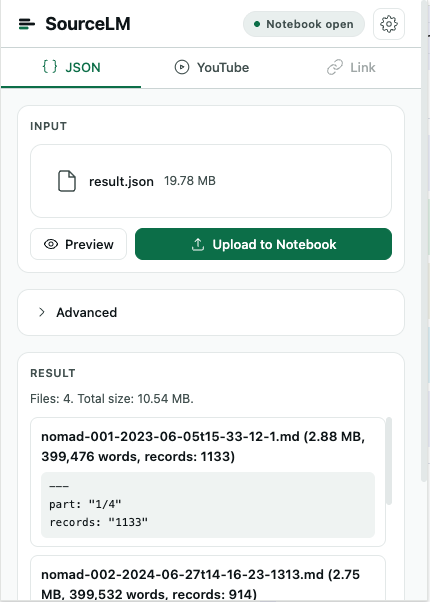
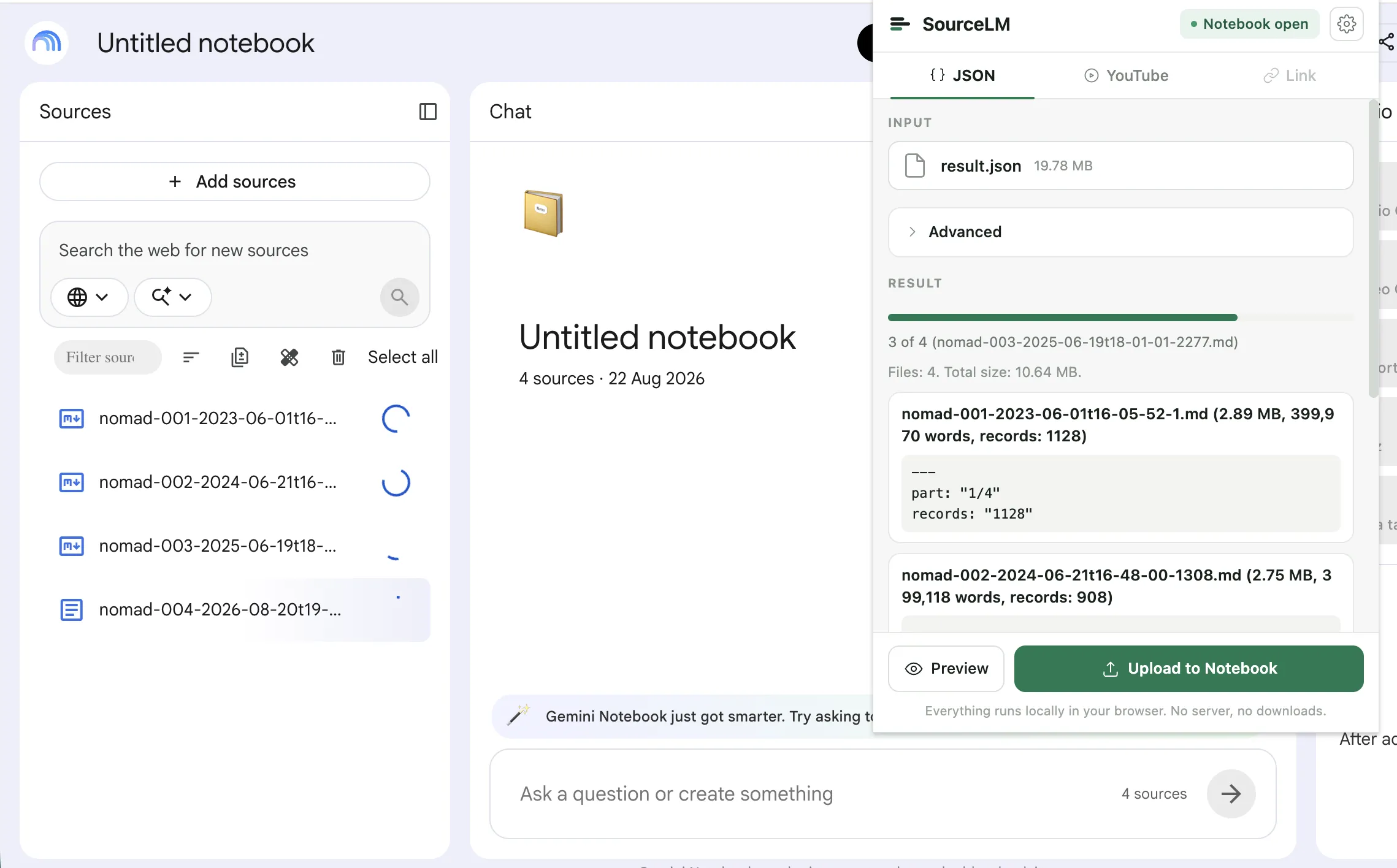
One group chat, exported with the steps above: result.json, 19.78 MB. The popup packed it into four Markdown files totalling 10.64 MB and uploaded them in one go — “uploaded 4, failed 0”. The word counts land just under the 400,000-word budget while the message counts differ, because a file closes at the last whole message that fits.
The filenames run from 2023-06-01 to 2026-08-20. Reading them is how the next run knows where to start. The write-up of this run lists every file and what to ask the notebook afterwards.
The ceiling is the notebook.
A single message never comes near the 500,000-word limit per source. What a long chat can run into is the number of sources the notebook holds.
Sources per notebook
- Standard (free)
- 50
- Google AI Plus
- 100
- Google AI Pro
- 300
- Google AI Ultra
- 500 / 600
Google's own numbers, checked 2026-08-21 — Ultra is 500 on the 20 TB plan and 600 on the 30 TB plan. Source: Upgrade Gemini Notebook. Every NotebookLM limit in one place.
What helps
- Give all the HTML pages to one run. Fed in one at a time, each page becomes an undersized source of its own, and sources are the scarcer cap.
- The Metadata toggle, on by default, is where sender and time live — and, from JSON, a second copy of every message's text, which roughly doubles the word count. Turn it off only if you will never ask who said what.
- One notebook per chat, rather than one notebook for the archive.
What counts as one bulk action
- One export uploaded — however many Markdown files it turns into
- 1 bulk action
- Bulk actions per calendar month, free
- 5
- Preview, and single sources — one page, one link, one video
- free, unmetered
- Unlimited bulk actions, no recurring charge
- $29, once
01Can I export a whole Telegram chat?
Yes, from a desktop client. Telegram Desktop has Export chat history in the chat’s ⋮ menu and writes JSON or HTML; the native Telegram for macOS app has it since version 12.10 and writes HTML. In Desktop, leave the From … to … row at its defaults and you get the whole history, oldest message to present. Telegram Web and the phone apps have no export at all. The full walkthrough, both clients.
02Is there a Telegram to NotebookLM converter online, or an app?
You do not need one. The conversion happens inside the extension popup, in your browser: the export is read, split into Markdown files and handed to the notebook’s own upload endpoint. The export is never sent to a third-party converter, and there is no author-controlled server to send it to.
03Is it free?
5 bulk actions a calendar month are free, and one chat export is one of them, however many files it produces. Single sources — one page, one link, one video — are free and unmetered, always. Past the monthly count it is $29, once, with no recurring charge.
04Do I need a bot, an API key or an installer?
No. Telegram’s own desktop client writes the export file; the extension reads it in the browser. There is no bot token, no API credential, no command line and nothing to install besides the extension itself.
05Does it work with private channels and groups?
The extension reads the export file, not Telegram — so whatever your desktop client can export, it can load: a private group, a channel you follow, a one-to-one chat. No public t.me link is involved at any point, because nothing fetches anything from Telegram. A channel, end to end.
06Do photos and voice messages come through?
No — the export is used text-only, which is also why the media checkboxes should be off before you export. A photo or voice message becomes a bracketed placeholder or an empty entry with the file path in its metadata; a caption on it comes through as text.
07JSON or HTML — which should I pick?
Whichever your client offers; both produce the same Markdown files, the same budget, the same filenames. JSON additionally carries reply links into the metadata. HTML drops service messages — joins, pins — and polls, and marks a forwarded message with a “Forwarded from Name:” line in the body.
08What happens when I export again next month?
Run it again on the same notebook and only the messages after the last cursor upload. In a verified run — four files already in the notebook, ten new messages in the export — the result was one new file and nothing re-uploaded. The one rule is not to rename the files in the notebook.
The chat you cannot read, as sources you can ask.
Install source-lm5 bulk actions a month, free. One export is one of them.