For students · NotebookLM & Gemini Notebook
Study with NotebookLM: the whole course in one notebook
Lectures live in a playlist or a channel. NotebookLM takes one link at a time, and the free notebook holds 50 sources (checked 2026-08-21). So the work is getting the material in, once — after that every question, study guide and flashcard set runs over the whole course.
One playlist or channel add is one bulk action; a single video is free and unmetered. No backend of ours, no third-party server.
How to study with NotebookLM, sources first
01
Put the course in one notebook
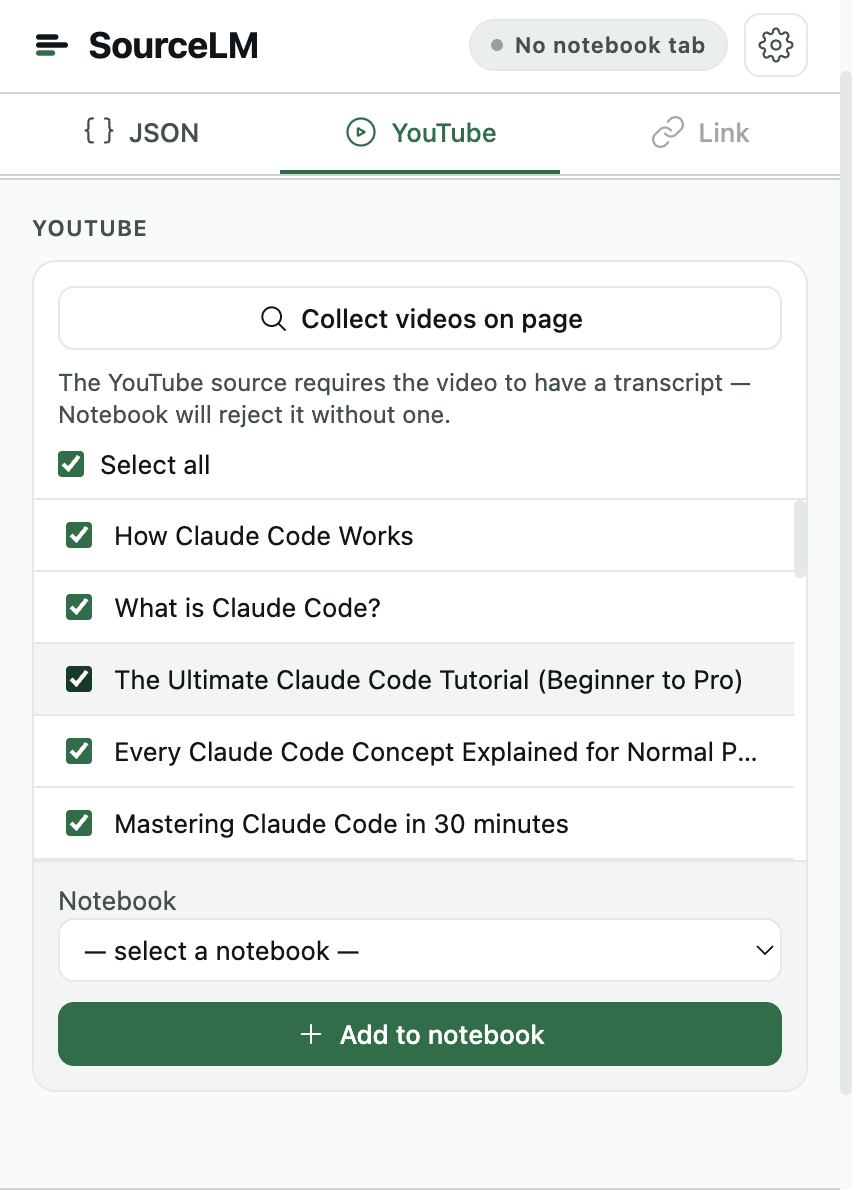
Open the lecture playlist or the course channel on YouTube. source-lm adds an “Add to notebook” button to YouTube’s own page; one click puts every video in the playlist — or the newest videos from the channel, 50 by default, you set the number — into the notebook you pick. Each video is one source, transcript only. How the YouTube buttons work.
02
Add the rest natively
Slides, PDFs and Docs go in through NotebookLM’s own Add source — source-lm does not import PDFs. Web readings can go in from the extension’s Link tab, one page at a time.
03
Ask, then generate
Ask a question and get an answer with citations back to the lecture. Then NotebookLM’s Studio panel makes the rest from the same sources: an Audio Overview, a study guide report, Flashcards, Quizzes, a Mind Map. Those are NotebookLM’s features; source-lm only gets the sources in. Studio outputs, as Google names them.
What it will not do
Five things worth knowing before the first playlist goes in.
- PDFs and slides
- source-lm does not import PDFs, slides or Docs. NotebookLM takes them natively through its own Add source; the extension covers YouTube, web pages and JSON.
- One video, one source
- Each video is one source, transcript only; a playlist is never merged into one. NotebookLM itself imports only public videos with captions, and a video uploaded less than 72 hours ago may not be importable yet (Google’s source page).
- Room for 60
- A playlist of 60 lectures needs a notebook with room for 60. Free Standard: 50 sources per notebook; Plus 100; Pro 300; Ultra 500 or 600(Google’s plan page, checked 2026-08-21). Split the course across notebooks, or add the newest 50 from the channel. Every NotebookLM limit in one place.
- One click, one action
- One playlist or channel add is one bulk action, of the 5 free per calendar month. Adding a single video from the watch page is free and unmetered, every time.
- Re-add skips what is there
- Adding the same playlist again later skips the videos already in the notebook. For one or two lectures that arrive during the term, add them singly from the watch page — single videos are free. The channel walkthrough shows a full run; NotebookLM for teachers builds the same notebook from the lecturer’s side.
Questions worth asking a course notebook
Specific beats broad. Each of these gets an answer with citations back to the lecture it came from.
“Which topics did the lecturer say would be on the exam? For each one, name the lecture and quote the sentence.”
“Define [term] the way it was defined in lecture, not the textbook way, and cite where.”
“Where do two lectures give different accounts of the same thing? List each pair.”
“List every worked example of [method] across the lectures, in order, with one line on what each adds.”
01Is NotebookLM good for studying?
For studying from your own material, yes: answers are grounded in the sources you added and cite them, so you check a claim against the lecture instead of trusting a model’s memory. The limit is what you put in — a notebook with three lectures answers three lectures’ worth, which is why the whole playlist goes in first.
02Can NotebookLM make a study guide?
Yes. In the Studio panel, Reports offers a study guide format alongside FAQ and briefing document; Flashcards and Quizzes are separate outputs. All of it is generated only from the sources in the notebook. Google’s Studio help page.
03What is the best way to study with NotebookLM?
One notebook per course. The whole lecture list in it before you start, slides added natively, then a routine: ask a question, read the cited passage, and only then generate the study guide or flashcards. Generating first from a half-filled notebook gives you a confident summary of half the course. Adding a playlist in one click.
04What are good prompts for studying in NotebookLM?
Specific ones. “Which topics did the lecturer say would be on the exam, and where?” beats “summarise the course”. Ask for a definition as the lecturer gave it, for two lectures that disagree, for every worked example of one method — see the prompts section on this page.
05Is NotebookLM free for students?
Google’s free tier: 100 notebooks, 50 sources each. Workspace for Education editions include Gemini Notebook free of charge for users of all ages. Eligible US college students can claim one year of Google AI Pro free — Google AI Plus outside the US — until December 31, 2026. source-lm’s free tier is 5 bulk actions a month; single videos cost nothing. Google’s student offer.
06How many lectures fit in one notebook?
As many sources as the plan allows: 50 on the free Standard plan, 100 on Plus, 300 on Pro, 500 or 600 on Ultra (checked 2026-08-21). Each video is one source, so a 60-lecture playlist needs Plus or above, or two notebooks. A channel add lets you stop at the newest 50. Every NotebookLM limit in one place.
07Does this work with Gemini Notebook?
Yes. Google renamed NotebookLM to Gemini Notebook on July 16, 2026; it is the same product, and source-lm’s buttons and popup work in it. Both names are on this page because both are still in use. Google’s announcement.
The whole course in, before the first revision session.
Install source-lm5 bulk actions a month, free. Single videos always free.