Chrome extension · Notion to NotebookLM
Add a Notion page and its subpages to NotebookLM (Gemini Notebook) in one click
NotebookLM has no Notion connector, and a pasted Notion URL imports an empty source — the page is built in the browser, so all the fetch gets is the JavaScript shell. source-lm puts an Add to NotebookLM button in Notion's own top bar. One click adds the page; tick the box and one level of child pages comes along, each as its own Markdown source.
No API key, no integration token, no OAuth. It runs in the Notion tab you are already signed in to, and nothing is written to your disk — no zip, no unzipping, no dragging files into a browser tab.
Demo · 0:48
One page tree, one click, five sources.
A public Notion handbook with four subpages: one click in Notion’s top bar, five Markdown sources in the notebook, then a question with citations. Waits trimmed, nothing else.
 Play the demo0:48
Two kinds of Notion page, two ways in.
A page in your workspace and a published site are different animals to Notion. The button is the same; what happens behind it is not.
Neither path scrapes the rendered page — the write-up covers the manual export as well, for one-off trees.
app.notion.com
your own workspace
The button runs Notion’s own Markdown export — the same one behind ••• → Export → Markdown & CSV, with the same fidelity — and unpacks the zip in the browser. Nothing lands in your Downloads folder. (www.notion.so/<id> redirects here, so an old link works too.)
*.notion.site
a public site you do not own
Notion does not let a visitor export a published site, so there the extension reads the page’s blocks the way the Notion app itself does and converts them to Markdown on the spot. A page that is a database — the usual “list of articles” layout — brings in one source per entry.
One catch
The depth is one level, everywhere. In your own workspace that means database rows are left out — Notion's export files them one level below the child pages, which is past the line. On a public site the run stops at 300 files and skips a page that holds nothing but a title, since an empty source helps nobody.
From the Notion page to the notebook
01
Open the page in Notion
The top-level page you want, in your workspace or on a published site. Everything one level under it can come along. Notion’s own export, click by click.
02
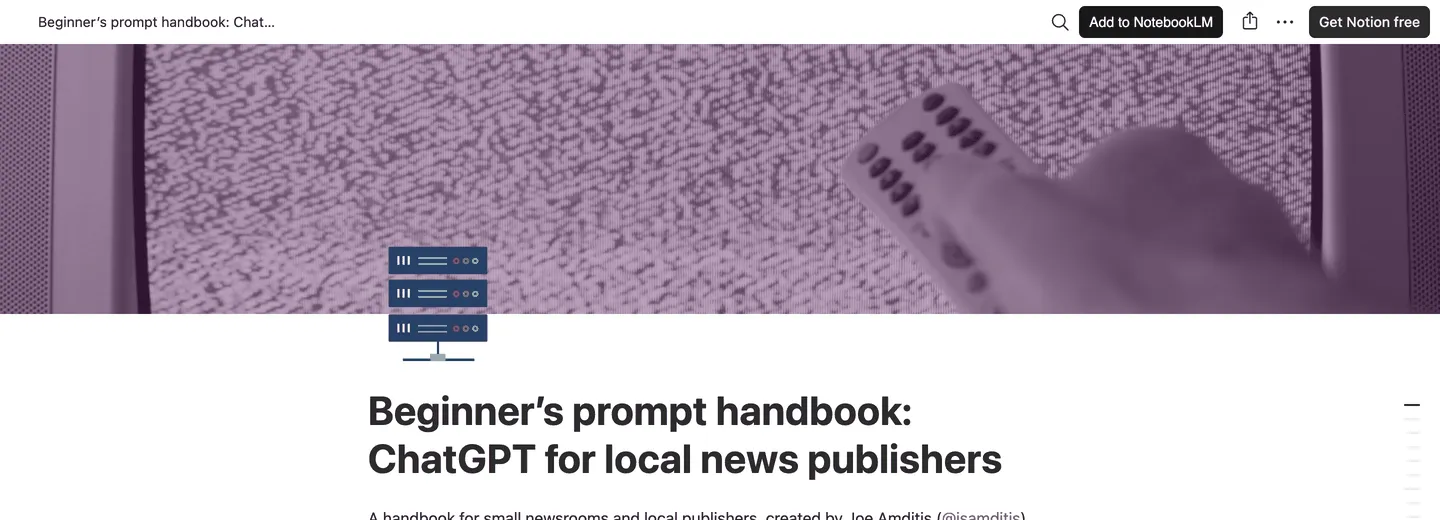
Click Add to NotebookLM
The button sits in Notion’s top bar, in front of Share. It appears on a page; on the home or inbox views there is nothing to export, so there is no button.
03
Pick the notebook, tick the box
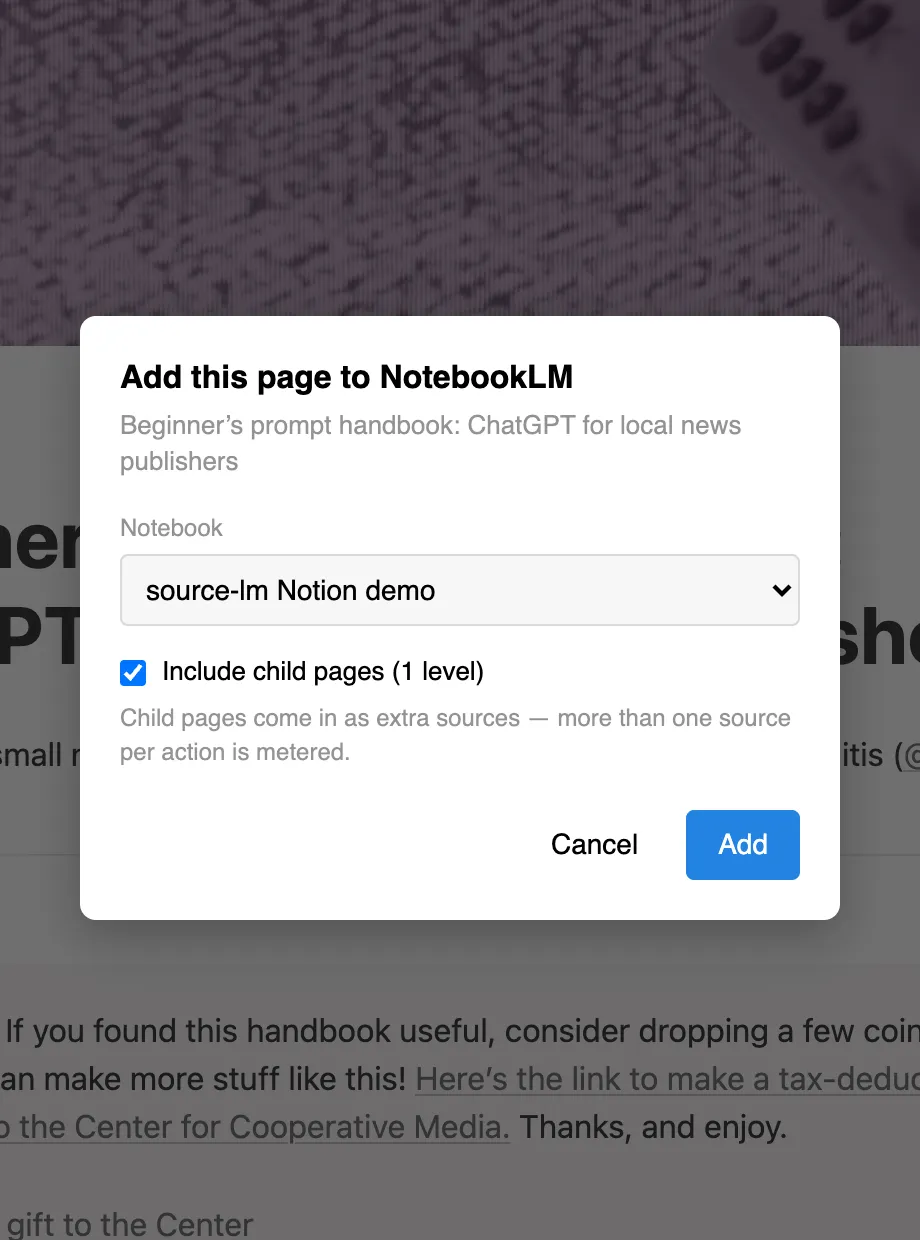
Choose an existing notebook or + New notebook, tick Include child pages (1 level) if you want the subpages too, and click Add. The notebook tab opens and the sources land in it. Open Gemini Notebook once beforehand — that is how the extension knows your notebook list.
What the button does with the page
Five behaviours to know before the first click.
- One file per page
- The page you clicked on is one Markdown source. With the box ticked, each child page is another one — separate sources, not one merged document, so a citation still tells you which page said it.
- Readable source names
- The source name is the page title, slugified, prefixed with the host and with Notion’s 32-hex block id stripped off: a zip unpacked by hand gives you Roadmap Q3 1f2a…b9c4, this gives you [notion.so]-roadmap-q3.md — the same naming as every other page the extension captures.
- Text, not attachments
- Headings, lists, tables, code blocks and callouts come through as Markdown. Images and file attachments are left out — the export is asked for without them, which is also what keeps it fast.
- Nothing is written to disk
- The export is fetched, unpacked and pushed straight into the notebook from the page you are on. Requests go to Notion’s own endpoints and to the notebook’s own origin — the two hosts you are already signed in to. There is no server of ours in between; there is none.
- No sync, by design
- Each run is a snapshot. Adding the same page again creates a second source rather than replacing the first, so delete the old one after a re-import, or the notebook will quote a stale paragraph with full confidence.
One page tree, one click, separate sources
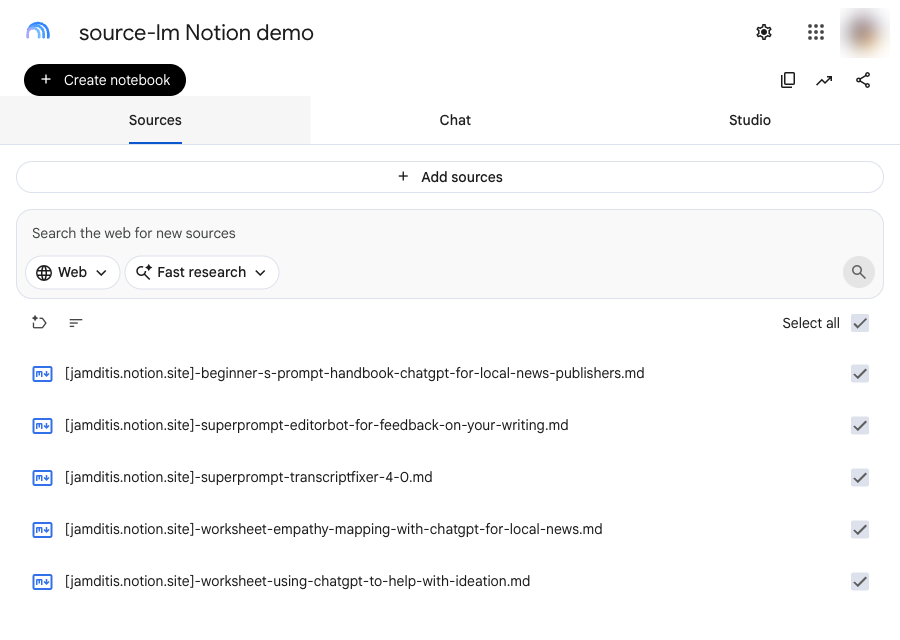
A public Notion handbook with four subpages, the child-pages box ticked: the parent and each of its four child pages arrived in the Sources panel as their own Markdown file — five sources, one click, the largest one 135 KB. Nothing was downloaded, unzipped or dragged anywhere along the way.
Separate sources are the point: ask the notebook a question and the citation names the page that answered it, instead of pointing at one merged document. The full write-up covers what the manual export gives you and what it costs in clicks.
The ceiling is the notebook.
A Notion page is small; a page tree is not. One file per page means the number of subpages you take is the number of sources you spend.
Sources per notebook
- Standard (free)
- 50
- Google AI Plus
- 100
- Google AI Pro
- 300
- Google AI Ultra
- 500 / 600
Google's own numbers, checked 2026-08-21 — Ultra is 500 on the 20 TB plan and 600 on the 30 TB plan. Source: Upgrade Gemini Notebook. Every NotebookLM limit in one place.
What counts as one bulk action
- One page, added on its own
- free, unmetered
- A page plus its child pages — however many sources it turns into
- 1 bulk action
- Bulk actions per calendar month, free
- 5
- Unlimited bulk actions, no recurring charge
- $29, once
01Can I connect Notion to NotebookLM?
There is no connector and no OAuth link between the two. Google’s own list of what a source can be names PDFs, Docs and Slides, websites, YouTube videos, audio and pasted text, and does not name Notion. What works is exporting the pages to Markdown and uploading the files — by hand, or with this extension doing the same export for you. Google’s list of source types.
02Why is my Notion link an empty source in NotebookLM?
Because a pasted Notion URL is added as a website source. Notion builds its pages in the browser with JavaScript, so what NotebookLM fetches is the initial HTML — an empty application shell — and a private page is not readable without your session at all. The empty source is the expected outcome, not a bug to retry. Both paths that do work.
03Does it work on private pages?
Yes — on pages in your own workspace, which is the normal case. The button runs in the Notion tab you are already signed in to and uses Notion’s own export, so it sees exactly what you see. Nothing is fetched from outside your session.
04Does it work on a public Notion site I do not own?
Yes. Notion refuses an export to a visitor who is not a member of the workspace, so on a published *.notion.site the extension reads the page’s blocks — the same calls the site itself makes to paint the page — and converts them to Markdown itself. A public knowledge base, wiki or Notion-hosted blog goes in this way.
05Does it import Notion databases?
On a public site, yes: a database page brings in one source per entry when the child-pages box is ticked, and with the box unticked the single source lists the entry titles instead. In your own workspace it does not — the export puts database rows one level deeper than child pages, and the depth stops at one level. Notion’s own Export with Include databases: Everything is the way to get those.
06How deep does it go?
One level. The page you clicked plus its direct child pages; grandchildren are not included. On a public site the run also stops at 300 files — NotebookLM’s own Pro ceiling, past which the upload would fail anyway — and skips a child page that has nothing but a title, because that would be an empty source.
07Do I need Notion’s API or an integration token?
No. There is no API key, no integration to create, no OAuth screen and nothing to install besides the extension. It runs inside the Notion tab you are signed in to, and uses the same private endpoints Notion’s own interface uses.
08Is it free?
Adding a single page is free and unmetered, always. A page plus its child pages is one bulk action, and 5 bulk actions a calendar month are free, resetting on the 1st. Past that the extension is $29, once, with no subscription and no account.
09Does it stay in sync with Notion?
No, and nothing does — NotebookLM has no connector to poll Notion with. Every import is a snapshot of the moment you clicked. Re-import after a round of substantial edits and delete the previous source; a page that changes daily is better kept out of the notebook.
The wiki you wrote, as sources you can ask.
Install source-lmOne page is free and unmetered. A page plus its subpages is one of 5 free bulk actions a month.