Turn a Telegram channel into a NotebookLM knowledge base
A channel you have followed for three years is a knowledge base nobody can read. The author has written a few thousand posts: releases, corrections, half-arguments they later dropped, one paragraph in 2024 that explained the thing better than any of the long ones. Telegram’s search finds a word you already remember. It cannot tell you what the channel says about a topic, or when the author changed their mind.
A notebook over the whole archive can. Once every post is in NotebookLM (Gemini Notebook) as sources, the questions that were impossible become ordinary ones: a digest of everything posted in a quarter, the themes that keep coming back, how the author’s position on one subject moved between the first post and the last, every post that mentions a product — with dates, and citations back to the post.
The mechanics are the ones in the Telegram chat walkthrough: the same export dialog, the same source-lm popup, the same Markdown files in the notebook. This post covers what is different about a channel — who can export it, what the archive loses on the way, and what to ask once it is in.
Export a Telegram channel in Telegram Desktop
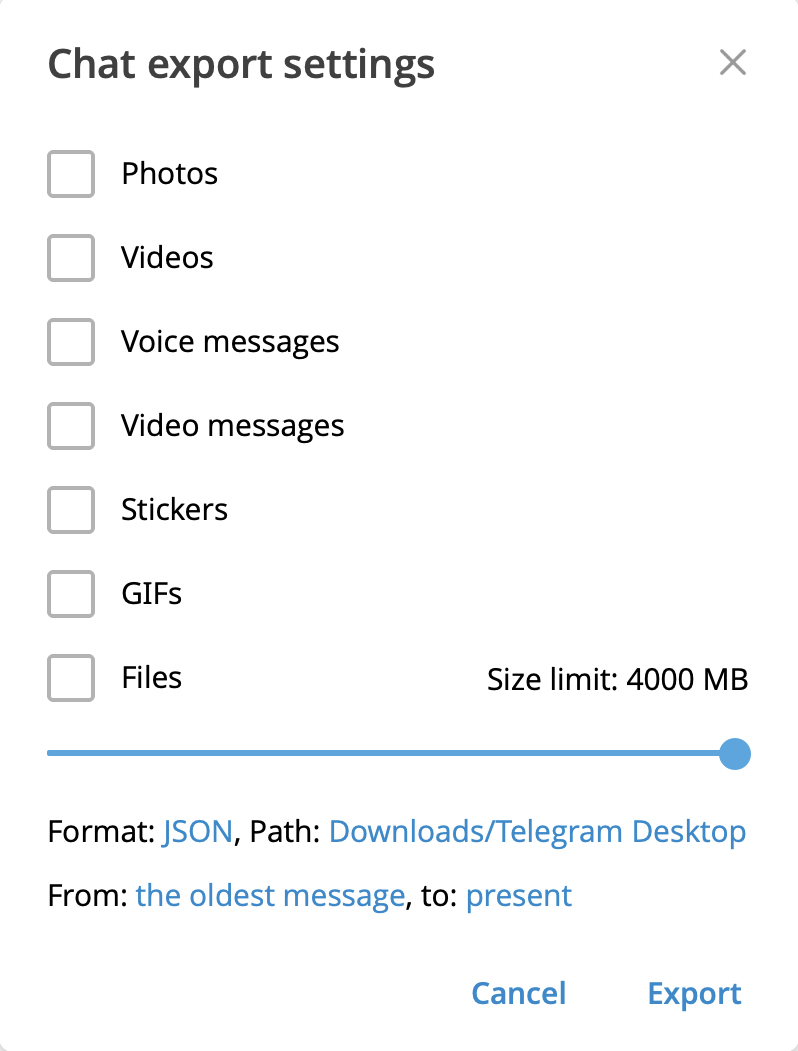
Channels export through the same menu as chats, in
Telegram Desktop: open the channel, open the
⋮ menu, choose Export chat history, untick every media type, pick a
format, leave the date range at its defaults, click Export. Both formats
work: Machine-readable JSON gives a single result.json and carries reply
links into the metadata; Human-readable HTML gives messages.html — and
messages2.html, messages3.html and so on for a long channel, which you
select all at once in the popup. The run below used HTML.
The native Telegram for macOS client (the Mac-only app, not Desktop) exports too, since version 12.10 — HTML only, per channel, from the same ⋯ menu. The chat post has both dialogs step by step and the 24-hour rule for a fresh login.
Three things follow from the export running in your own client:
- It works on private channels and on channels with no public link. The export runs inside your own signed-in Telegram Desktop, over the channels that account can already read.
- It needs no bot, no API key, no installer, no
t.meaddress to paste anywhere. - It does not care whether you are the channel’s admin.
Telegram Web and the phone apps have no export at all.
From the export to sources
Open the notebook, open the source-lm popup on the JSON tab, pick
result.json — or every .html page in one selection — and Preview lists the files the run will create. The channel’s
name becomes the filename prefix — a channel called “Field Notes” gives
field-notes-001-… — and posts are packed in order into Markdown files of at
most 400,000 words each, a post never split across two files. The
conversion happens in the popup; nothing is written to disk and nothing goes to
a server of ours.
The one number to expect: a channel does not arrive as one source per post — that would exhaust the per-notebook source cap on a month of posting. It arrives as the smallest number of large sources the word budget allows. A channel of long essays fills a file in a few hundred posts; a channel of one-line links takes thousands. Years of a text channel, not dozens of files.
A real run
One fintech channel, exported as HTML from Telegram Desktop: a single
messages.html, 2.39 MB. The popup turned it into one Markdown file and
uploaded it — “uploaded 1, failed 0”:
finek-fintech-banking-001-2026-09-03t11-56-13-13.md — 993.2 KB, 159,005
words, 615 posts.
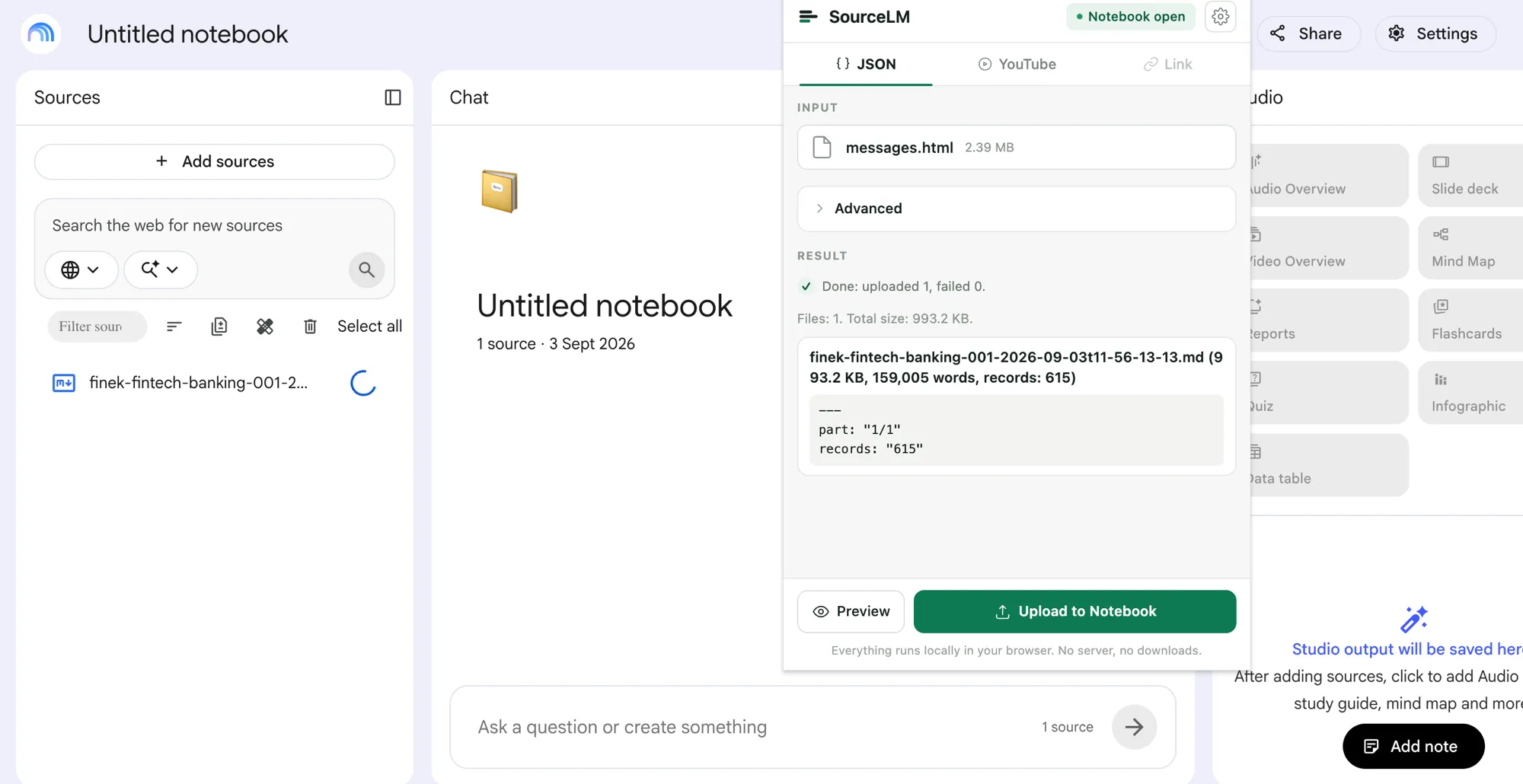
Two things to read off that card. The whole archive — 615 posts — came in
under the 400,000-word budget, so the channel is one source in the
notebook, not 615; the cap on sources per notebook barely notices it. And the
name carries the state: the channel’s title slugified, file index 001, the date
of the newest post, the id of the oldest. The next export, taken from that date
on, becomes …-002-….
For scale against a chat: the group chat in the sibling post needed four files for three years. A channel is one author writing; it is smaller than it feels.
When the channel keeps posting, re-export from the From: date near your last run and run the same notebook again; only the posts after the last cursor are uploaded. The chat post has the re-run rules, including the one that matters: do not rename the files in the notebook.
What to ask
Questions a channel search cannot answer, and a notebook over the full archive can:
- “Summarise everything this channel posted between January and March, grouped by topic.”
- “Which themes come back more than three times across the archive, and when did each first appear?”
- “How did the author’s position on [subject] change over time? Quote the posts in order, with dates.”
- “List every post that mentions [product or person], with its date.”
- “What did the channel say right before and right after [event]?”
- “Which posts contradict each other, and which one is the later word?”
Citations point back into the Markdown, where each post’s date and sender sit in the Metadata block below the text.
What a channel loses on the way
A channel is more formatted and more forwarded than a group chat, so the general limits cost it more:
- Formatting is flattened. Bold, code and links come through as their plain words; a hyperlink keeps the visible text, not the URL. A channel that posts “read more →” over a link keeps the arrow and loses the destination.
- Forwarded posts — common in a channel that reposts — come out of an HTML
export with a
Forwarded from Name:line at the top of the body, part of the text rather than metadata. Ask the notebook to distinguish the author’s own words from reposts and it will use that line. - Polls are dropped from an HTML export. JSON keeps the post as an entry.
- Media without a caption is an empty entry. A photo channel is mostly empty entries; a text channel is not. Captions come through either way.
- Free tier: 5 bulk actions per calendar month; one channel export is one of them. After that the extension is $29, once.
FAQ
Can I export a whole Telegram channel?
Yes. In Telegram Desktop, open the channel, open the ⋮ menu and choose
Export chat history. Leave the date range at its defaults and you get the
whole archive, oldest post to present, as one result.json or as HTML pages.
Do I need to be the channel admin? No. It is the same Export chat history item that every chat has, and it exports what your account can read.
Does it work for private channels? Yes — and for channels with no public link. The export runs inside your own signed-in Telegram Desktop, so anything that account can read, it can export. No bot and no API key are involved.
Can I do this from my phone or Telegram Web? No. Export exists only in Telegram Desktop and, since version 12.10, in the native Telegram for macOS app. Telegram Web and the mobile apps have no export.
How is this different from adding a t.me link? A link adds a single public post as one source, and only if the channel is public. An export gives NotebookLM the whole archive with its dates, from a private channel as readily as a public one.
Do photos and voice posts come through? No — the export is used text-only. Media becomes a placeholder or a file path in metadata, and captions come through as text.
Not affiliated with Google. NotebookLM and Gemini are Google trademarks; this is an independent extension that automates a signed-in session.
Turn the whole channel archive into sources in one click.
Install source-lm5 bulk actions a month, free. Single sources always free.