Export a Telegram chat to NotebookLM: JSON or HTML
· updated
A long group chat is a knowledge base nobody can read. Somewhere in three years of an expat group is the answer to how long the tax office took, which form replaced the old one, which accountant people stopped recommending. Telegram search finds a word you already know. It cannot answer a question.
NotebookLM can — once the chat is inside it as sources. This post walks through getting a whole Telegram chat in, and keeping it current, with source-lm — the short version of what the extension does with an export is on the Telegram page.
Where export exists
Two desktop applications have it, and they hand you different formats. Telegram Desktop (Windows, macOS, Linux) has exported since 2018 — see Telegram’s export announcement — and offers JSON or HTML. The native Telegram for macOS app — the Mac-only client, not Desktop — added Export Chat History… in version 12.10, released 24 August 2026; per chat it writes HTML, with no JSON option. The Mac App Store build lags behind: it was still 12.9, without the menu item, at the end of August 2026, so if you do not see it, take the build from macos.telegram.org.
Telegram Web and the phone apps still have no export at all.
A channel exports from the same menu, with the same steps; turning a Telegram channel into a knowledge base walks through one.
source-lm reads both formats — follow the section for the client you have.
Export a Telegram chat to JSON in Telegram Desktop
- Open the chat in Telegram Desktop.
- Open the ⋮ menu in the chat and choose Export chat history.
- Under Media export settings, untick Photos, Videos, Voice messages, Video messages, Stickers, GIFs and Files — the extension takes text only, and media makes the export slow and large for nothing.
- Under Location and format, open the format picker and choose Machine-readable JSON.
- Leave the From: … to: … row at its defaults — the oldest message to present — for the first export.
- Click Export. Telegram writes a folder with a single
result.jsonin it.
One catch, in Telegram’s own words:
Note: If you just logged in to Telegram Desktop, you will either have to wait for 24 hours — or confirm the export request from another device and begin downloading your data immediately.
That file has the chat’s name at the root and a messages array — one object
per message with id, date, from, text, and for formatted messages a
text_entities list.
How to export a Telegram chat on a Mac
If you are on the Mac client rather than Desktop, the same thing is two clicks away — on 12.10 or newer.
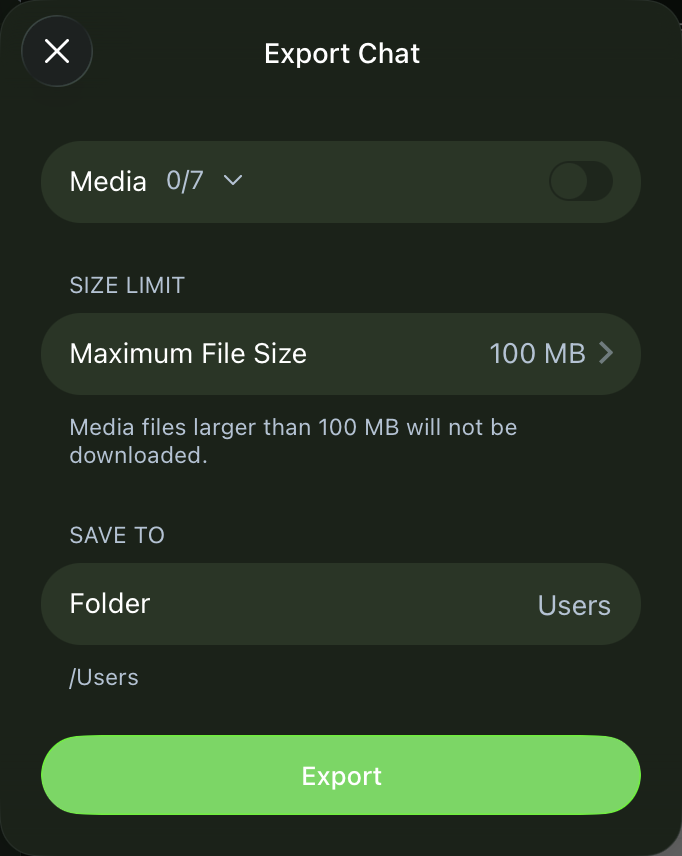
- Open the chat in Telegram for macOS.
- Open the ⋯ menu in the chat and choose Export Chat History….
- Leave the Media toggle off — the extension reads text only, and media makes the export slow and large for nothing.
- Click Export. Telegram writes a folder with
messages.htmlin it — and for a long chat,messages2.html,messages3.html, and so on, one page each.
In the source-lm popup, select all of those .html files in one go — the
file picker takes a multi-selection. The extension puts the pages back in chat
order itself (messages.html is page one), so it does not matter how the
picker sorted them. One thing it will not do is take a mix: either a single
.json or only .html files in one run.
Note: Resist the urge to feed the pages in one at a time. A single
messages.htmlis far below the 500,000-word source limit, so one page per run means one undersized source per page — and sources per notebook are the scarcer cap. Given all the pages at once, the extension packs the messages into as few files as the word budget allows.
From there nothing differs. Preview shows the same file list, the packing budget is the same 400,000 words, the filenames carry the same cursor, and next month’s re-run picks up where this one stopped.
What source-lm does with it
Open the notebook in NotebookLM or Gemini Notebook, open the source-lm popup on
the JSON tab, and pick result.json — or the .html pages. Before anything
uploads, Preview shows the files it will create:
- It takes the chat’s name — the
nameat the root of the JSON, the page title in HTML — as the filename prefix, slugified. - Each message’s
datebecomes the file’s cursor;textbecomes the body; sender, ids and — from JSON — reply links go under a Metadata heading after it. - Messages are packed in order into Markdown files, budgeted at 400,000 words of rendered Markdown each — a margin under NotebookLM’s 500,000-word limit per source. A message is never split across two files.
The first file of the run below is named like this:
nomad-001-2023-06-01t16-05-52-1.md
Prefix, file index, the date of the last message in the file, the first message’s id. The index and the date are what make the next run possible.
The whole conversion happens inside the popup. The files are built in memory and sent to the notebook’s own origin — the same host you are signed into. Nothing is written to disk and nothing goes to a server of ours; there is none.
A real run
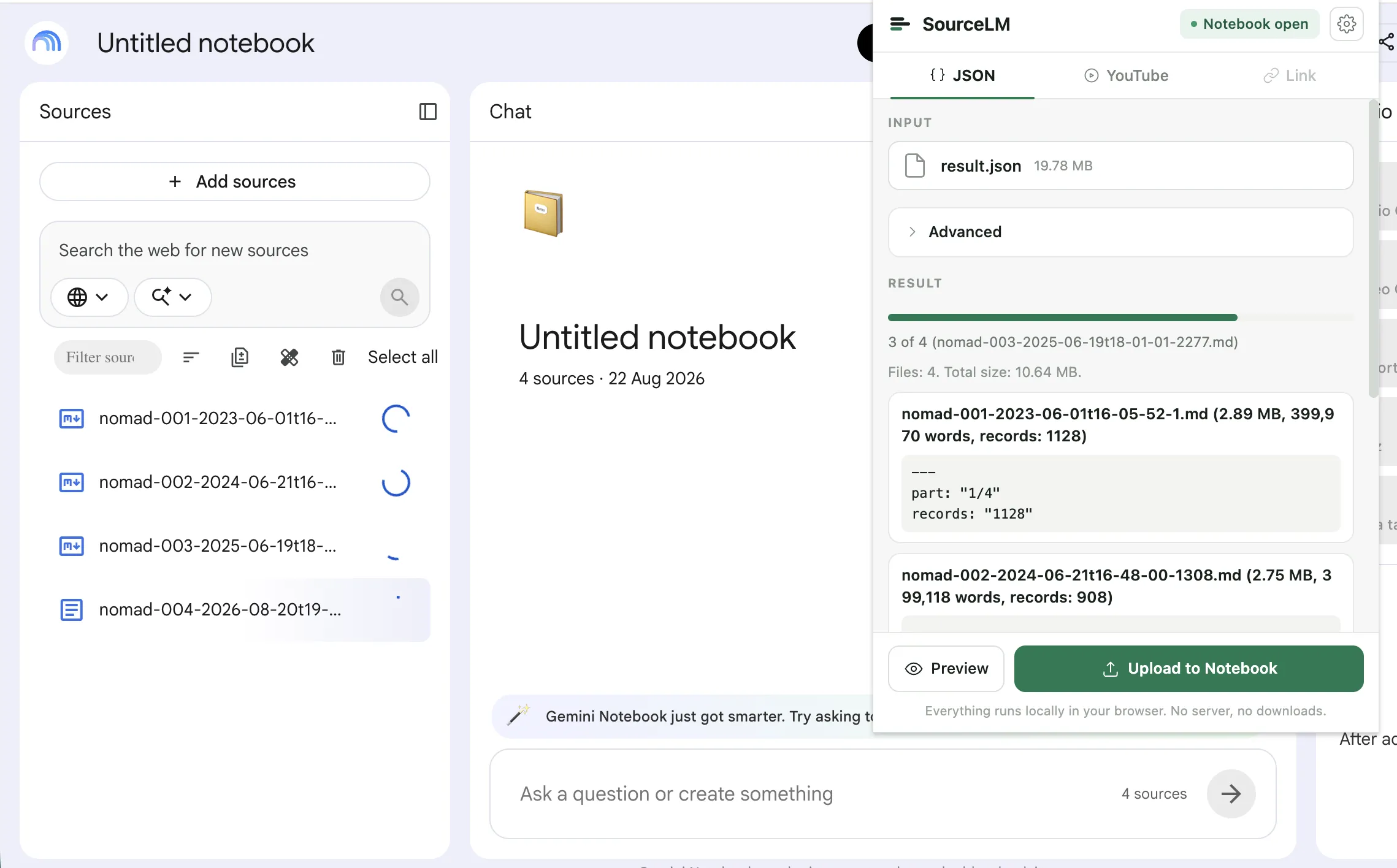
One chat, exported with the steps above: result.json, 19.78 MB. The popup
packed it into four Markdown files, 10.64 MB in total, and uploaded them in one
go — “uploaded 4, failed 0”.
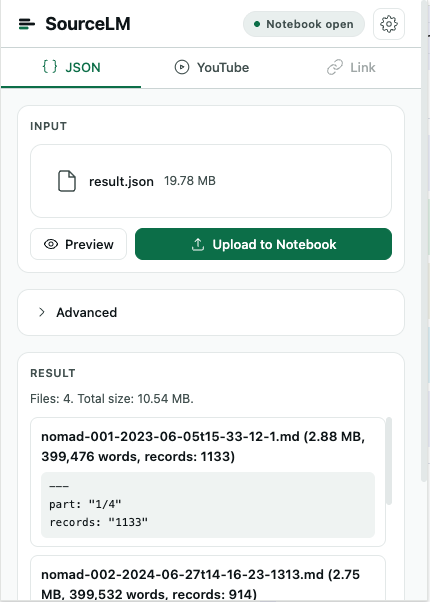
nomad-001-2023-06-01t16-05-52-1.md— 2.89 MB, 399,970 words, 1128 messagesnomad-002-2024-06-21t16-48-00-1308.md— 2.75 MB, 399,118 words, 908 messagesnomad-003-2025-06-19t18-01-01-2277.mdnomad-004-2026-08-20t19-45-24-…
Two things to read off the names. The word counts land just under the 400,000 budget while the message counts differ — the budget is words, and a file closes at the last whole message that fits. And the dates run from 2023-06-01 to 2026-08-20: about three years of chat, four sources.
Next month: export again, run again
Chats grow. Re-export the same chat, pick the new result.json — or the new
set of .html pages — and run the same notebook again. The popup reads the
file names already in the Sources panel, finds the last cursor, and uploads
only the messages after it.
You do not have to re-export the whole history every time. The export dialog in Telegram Desktop has a From: … to: … row — set From to roughly the date of your last export and the file stays small. Overlap is fine: the cursor is a date, so anything already in the notebook is skipped either way.
In a test run on a fixture chat: four files in the notebook, ten new messages
in the export → one new file, …-005-…. Nothing re-uploaded, no duplicates to
delete.
One rule: do not rename the files in the notebook. The prefix and the date in the name are the state — there is no local watermark to fall back on.
What to ask
Questions that a word search cannot answer and a notebook over the full history can:
- “What did people say about registering as an individual entrepreneur, in order, and what changed over time?”
- “Which providers were recommended more than once, and by whom?”
- “Summarise every thread about health insurance, with the dates.”
- “What questions came up repeatedly that never got a clear answer?”
The citations point back into the Markdown, where the sender — and, from a JSON export, the reply chain — sits in the Metadata block under each message.
Limits
- Text only. A photo, voice message or sticker with no caption becomes an
empty entry with the media file’s path in its metadata from JSON, and a
bracketed placeholder —
[Photo],[Voice message], the file’s name — from HTML. Captions come through either way. - Formatting is flattened. A link, a bold run or a code span comes through as its plain words; a hyperlink on a word keeps the word, not the URL.
- Service messages — joins, pins, title changes — come through from JSON as near-empty entries with the action in metadata. An HTML export drops them.
- Polls are dropped from an HTML export: a poll message carries neither a text block nor a media block, and those are what the HTML reader keeps.
- A forwarded message, out of HTML, says so in its body rather than in
metadata: the text starts with a
Forwarded from Name:line, above the message itself. - Sender and time are in the Metadata block under each message, not on the line itself. From JSON the time there is the export’s Unix timestamp; from HTML it is the wall-clock time Telegram printed, without the zone offset.
- NotebookLM’s own caps apply — sources per notebook on your plan, and 500,000 words per source. The 400,000-word budget keeps each file under the latter; the former is on Google’s side. See NotebookLM (Gemini Notebook) limits for the per-plan numbers.
- Free tier: 5 bulk actions a calendar month. One chat export is one. After that it is $29, once.
FAQ
How do I export a Telegram chat on a Mac?
On the native Telegram for macOS app, version 12.10 or newer: open the chat,
open the ⋯ menu, choose Export Chat History…. It writes HTML pages —
messages.html, messages2.html, and so on. Telegram Desktop on a Mac works
too and offers JSON as well.
Why don’t I see Export Chat History in my Telegram on Mac? You are on an older build. The Mac App Store version lagged at 12.9 — without the menu item — after 12.10 shipped; the build from macos.telegram.org has it.
Can I export a chat from Telegram Web or the phone apps? No. Export exists only in Telegram Desktop and, since version 12.10, in the native macOS app.
JSON or HTML — which should I pick? Whichever your client offers. source-lm reads both and produces the same Markdown files; JSON additionally carries reply links into the metadata.
Do photos and voice messages come through? No — the export is used text-only. Media becomes a placeholder or a file path in metadata; captions come through.
Not affiliated with Google. NotebookLM and Gemini are Google trademarks; this is an independent extension that automates a signed-in session.
Load the whole chat export into NotebookLM in one click.
Install source-lm5 bulk actions a month, free. Single sources always free.