How to save a ChatGPT conversation to NotebookLM
ChatGPT is a poor place to keep a ChatGPT conversation: the sidebar is a list of titles, search matches only words you already remember, and the answer you need is forty turns deep in a chat from March. NotebookLM — now also branded Gemini Notebook — is the opposite: give it thirty conversations as sources and it answers with a citation into the exact turn.
ChatGPT’s own export is an account-wide zip that arrives by email; copy-paste
flattens code blocks and loses who said what; “print to PDF” puts the sidebar
in the document. source-lm takes one click on the open chat, and the
chat lands in the notebook as a Markdown transcript. Below: the steps on
chatgpt.com, the same route on Claude, Gemini and Perplexity, and what the
result looks like.
Export a ChatGPT conversation to NotebookLM
- Open the conversation on
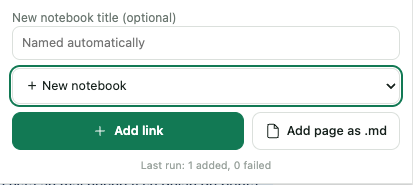
chatgpt.comin one tab and the notebook in another (NotebookLM or Gemini Notebook — the same product since the rename). - Open the source-lm popup and click Add page as .md. Pick the notebook from the list, or type a title to create a new one.
- source-lm captures the chat and uploads it as a Markdown source named
[chatgpt.com]-<chat-title>: the site, then the chat title.
Nothing is downloaded, so there is no file in Downloads to drag back into a
browser tab. Nothing leaves the browser except the upload to Google’s own
notebook host — the host you are signed into. The capture runs on Chrome’s
activeTab permission: the extension gets access to chatgpt.com only when
you click, and only for that tab.
Repeat for the next chat: one conversation is one source, so ten chats about the same project become ten sources in one notebook.
Claude to NotebookLM
Same three steps on claude.ai. The source appears as
[claude.ai]-<chat-title>; turns are labelled **You:** and **Claude:**.
Gemini to NotebookLM
Same three steps on gemini.google.com. The source appears as
[gemini.google.com]-<chat-title>; turns are labelled **You:** and
**Gemini:**.
Gemini and Gemini Notebook are both Google products, and neither UI has a button that moves a chat into a notebook.
Perplexity to NotebookLM
Same three steps on perplexity.ai. The source appears as
[www.perplexity.ai]-<thread-title>; turns are labelled **You:** and
**Perplexity:**.
A Perplexity answer is mostly a summary of the pages it cites. If you want those pages in the notebook rather than the summary, add them as web sources through the popup’s Link tab: NotebookLM then fetches the original text and cites it instead of a paraphrase.
Only part of a chat: Add selection to Notebook
When one answer is the point and the rest of the chat is noise: select the text — on any of the four sites, or any page — right-click, and choose Add selection to Notebook with the notebook name from the submenu. The selection becomes a source. A selection spanning several paragraphs keeps its line breaks, so a long answer arrives as the paragraphs it was written in, not one block.
The two are separate: Add page as .md in the popup takes the whole page, the context menu item takes only the selection.
What the source looks like
The source is a Markdown transcript:
- Every turn is on its own, labelled
**You:**and**ChatGPT:**— or**Claude:**,**Gemini:**,**Perplexity:**— so a citation names who said it. - Code blocks keep their language label and indentation, so a Python snippet still reads as code. The ``` fences themselves are not preserved.
- The sidebar, the suggested follow-ups and the input box are excluded.
- The source is named after the chat title, prefixed with the site
(
[chatgpt.com]-…), so the Sources panel stays readable without renaming anything.
Unlike a folder of PDFs, the notebook answers a question across all the chats at once, cites the turn it drew on, and feeds the same sources into an Audio Overview or a study guide. Claude Code can query it as well, through the NotebookLM MCP server.
Limits
- One conversation per click. The extension captures the chat in the active tab, not your whole history. Thirty chats is thirty clicks — a minute or two, not a batch job.
- ChatGPT’s official export is not parsed yet. Settings → Data controls →
Export data gives you a zip with a
conversations.jsoninside; source-lm’s JSON tab does not read that format today, so there is no one-run import of your entire history yet. - Long chats are captured as rendered. The capture takes what the site has drawn in the tab, so on a long conversation scroll to the top once before you click, to load the earliest turns.
- NotebookLM’s per-source cap applies: 500,000 words per source. A chat will not get near it; the cap that bites is sources per notebook — 50 on the free plan — see NotebookLM (Gemini Notebook) limits for the per-plan numbers.
- Free tier: a single page or a selection is unmetered. Bulk actions — one click adding more than one source — are 5 a calendar month; after that, $29 once, no subscription, no account.
FAQ
How do I export a ChatGPT conversation?
Two ways. ChatGPT’s own: Settings → Data controls → Export data, which emails
a zip of your entire account with conversations.json and an HTML view — not
one chat, and not in a shape NotebookLM takes. Per conversation: open the chat
and capture it with an extension; source-lm’s Add page as .md puts it into
a NotebookLM notebook as a Markdown transcript in one click.
Can I export a ChatGPT conversation to Markdown?
Yes. The capture is Markdown: each turn is labelled **You:** or
**ChatGPT:**, code blocks keep their language label and indentation, and the
source is named after the chat title. It goes straight into the notebook as a
source; the extension does not write a file to disk.
Does this work for Claude, Gemini and Perplexity too?
Yes, with the same button and the same three steps. The turn labels follow the
assistant — **Claude:**, **Gemini:**, **Perplexity:** — and the source
is named after the chat’s title on each site.
Can I add my whole ChatGPT history at once?
Not yet. The extension captures one conversation per click and does not read
the conversations.json from ChatGPT’s account export. A notebook of your
important chats is thirty clicks; a notebook of every chat you ever had is not
possible in one run today.
Is it free? A single conversation or a selection is always free and unmetered. The free tier meters bulk actions only — 5 a calendar month; beyond that, $29 once.
Not affiliated with Google or OpenAI. NotebookLM and Gemini are Google trademarks; ChatGPT is an OpenAI trademark; Claude is an Anthropic trademark; this is an independent extension that automates a signed-in session.
Save the whole conversation to NotebookLM in one click.
Install source-lm5 bulk actions a month, free. Single sources always free.