Blog
Put a whole YouTube channel or playlist into NotebookLM (Gemini Notebook)
A course channel has 80 lectures. The answer to “where did she define the term, and did the definition change by lecture 30” is in there, spread across eight hours of video. NotebookLM can answer that — it takes YouTube links as sources and reads the transcripts. But the Add source dialog takes one link at a time: open video, copy URL, switch tab, paste, wait, repeat. Eighty times.
This post is the short way: source-lm puts an Add to notebook button on the channel page and the playlist page, and one click adds every video. Details on the product are on the YouTube page; this is the walkthrough.
What NotebookLM does with a YouTube link
Worth knowing before adding 80 of them. Google’s help page on adding sources (checked 2026-08-21) says:
- Transcript only. “Only the text transcript of the video is imported as a source.” No frames, no slides, no audio. If the lecturer writes on the board without saying it, it is not in the notebook.
- Public videos with captions. User-uploaded or auto-generated captions both count; private videos, and videos without speech, do not import.
- Fresh uploads may fail. “Videos uploaded less than 72 hours prior may not be available to import.” Re-add them later.
- Every video is one source. No bundling happens on NotebookLM’s side, and source-lm does not merge transcripts either. Eighty lectures are eighty sources, which matters for the per-plan cap — see NotebookLM limits.
So yes, NotebookLM “transcribes” a YouTube video in the sense people mean: it reads the captions YouTube already has. It does not run its own speech recognition on a video with no captions.
Before the first click
Open NotebookLM (or Gemini Notebook) once with the extension installed. The in-page dialog on YouTube needs a list of your notebooks to pick from, and a content script on youtube.com cannot ask NotebookLM for it — so the notebook tab writes the list to a local cache when it loads, and the YouTube side reads the cache. Skip this and the dialog says Open Gemini Notebook once so the extension can see your notebooks and offers only + New notebook.
A whole channel in one click
- Open the channel. The button Add to notebook sits in the header, next to Subscribe.
- Click it. The dialog is headed Add channel videos, with a notebook
picker and a field Add latest N videos — default
50. Set it to what you need; the field has no upper limit of its own. - Click Add. The button label changes to Collecting 12…, Collecting 30… as it works. If you were on the channel’s Home tab, it switches to the Videos tab for you and walks it: scroll, wait for YouTube to render the next batch, collect, repeat.
- It stops when it has N videos, when two scroll rounds in a row bring nothing new (the channel is out), or after about 90 seconds. The first N collected — newest first, the order the Videos tab uses — go to the notebook.
- A notebook tab opens and the job runs there, with a toast counting Adding 3/50: …. At the end: Added 50, failed 0 — reload the page to see the new sources.
The button reads the Videos tab and nothing else. A channel’s Shorts and Live tabs are separate pages; the harvest does not visit them.
A playlist
Two buttons, one rule: what has rendered is what gets collected.
- Playlist page (
youtube.com/playlist?list=…). Add to notebook sits in the header actions row next to Play all. It collects every video loaded on the page — YouTube lazy-loads long playlists, so scroll to the bottom first. The dialog shows the count and warns if the page’s own total is higher: 40 of 112 loaded — scroll the page to load the rest. - Watch page with the playlist panel open. Add to Notebook sits in the panel header, between shuffle and the ⋮ menu. It collects every video rendered in the panel, which is also lazy — scroll the panel down once before clicking. Same count in the dialog.
Either way the dialog is headed Add N videos, you pick the notebook, click Add, and the notebook tab does the rest.
A real run
One channel, the steps above: the header button, the dialog left at Add latest 50 videos, Add.
The button counts up in steps as YouTube renders each batch and stops at N, when the channel runs out, or at the 90-second cap — whichever comes first — and the notebook tab reports the result in its toast. After a reload the Sources panel lists one entry per video, titled the way YouTube titles them.
Two things to read off the result. The count in the toast is the count in the panel — a failure shows up as the failed count in the toast, with the last error text; the progress line names each video as it is added. The usual culprit is a video with no captions or one uploaded in the last three days. And the sources are plain YouTube sources: click one and NotebookLM shows the transcript it imported.
If a button does not show
YouTube redesigns its header often. The buttons anchor on YouTube’s own element tags and labels rather than its generated class names, so a single change rarely takes them out — but if the button is missing, the popup does the same job from outside the page.
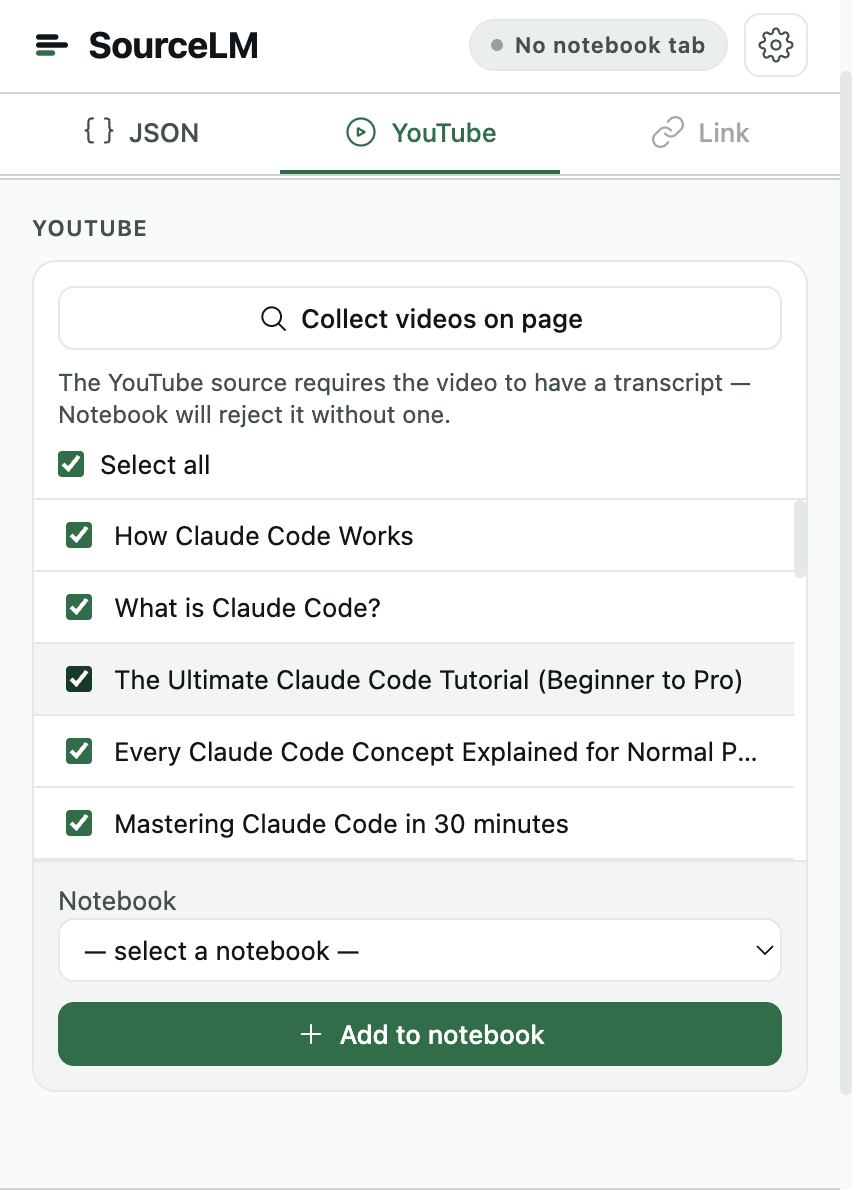
Open the source-lm popup on the YouTube tab, click Collect videos on page, tick the videos (or Select all), pick the notebook, click Add to notebook. The popup collects what the page has rendered — the same lazy-DOM rule — and hands the job to the notebook tab.
What to ask
Questions that a playlist of 50 lectures can answer once it is one notebook:
- “Where is gradient descent first defined, and does the definition change in later lectures?”
- “List every lecture that mentions the final project, with what was said about it, in order.”
- “Which topics does the lecturer say will be on the exam?”
- “Summarise lecture 12 in 300 words, with the examples used.”
Each answer cites the video and the passage of transcript it came from. For students this is the case the students page is built around.
Limits
- Every video is one source. 50 sources per notebook on the free plan, 100 on Plus, 300 on Pro (Google’s plan table, checked 2026-08-21). A 120-video channel does not fit a free notebook; set latest N to what fits, or split by notebook. Per-plan numbers in NotebookLM limits.
- Re-running the channel button adds only what is new — the notebook tab checks the notebook’s existing sources by video id and the toast reports them as skipped. The click is still one bulk action on the free tier, so for a couple of new uploads, open each video and use the watch-page Add to notebook instead — single videos are free and unmetered.
- No captions, no source. NotebookLM rejects a video without a transcript; the popup says so under its Collect button. Videos under 72 hours old may fail too — add them again later.
- Videos tab only. The channel button reads the Videos tab; Shorts and Live tabs are not walked.
- Nothing is merged. Transcripts stay one per video; source-lm does not combine them into fewer sources.
- Free tier: one click that adds more than one video is one bulk action; 5 a calendar month, shared with JSON uploads. Single videos are free and unmetered. Unlimited is $29, once.
Not affiliated with Google. NotebookLM and Gemini are Google trademarks; this is an independent extension that automates a signed-in session.
Get source-lm — five channel or playlist imports a calendar month on the free tier, single videos any time.